What the Zebra ZC10L is and why events use it
The Zebra ZC10L is a large format badge printer. It prints full color, edge to edge badges on PVC cards up to 3.5 x 5.5 inches, one at a time, on demand, and cuts each badge as it comes out. That makes it the printer of choice for conferences, festivals, corporate events and sporting events that want a durable, premium credential printed at the moment an attendee checks in.

CrowdPass is a leading operator of Zebra ZC10L printing for events and the only event platform that offers full color, edge to edge, PVC large format badge printing as part of its check-in and badge printing software. You design the badge in CrowdPass, attendees check in on a phone, tablet or laptop, and the ZC10L prints the finished badge in seconds. The same badge carries the QR or NFC credential CrowdPass uses for access control across every zone of your event.
This guide walks through the full ZC10L setup CrowdPass uses onsite: unpacking, connecting the laptop, configuring the driver, loading badge stock and running a test print before doors open. If you would rather have CrowdPass bring the printer and run it for you, see ZC10L badge printer rentals.
What you need before the event
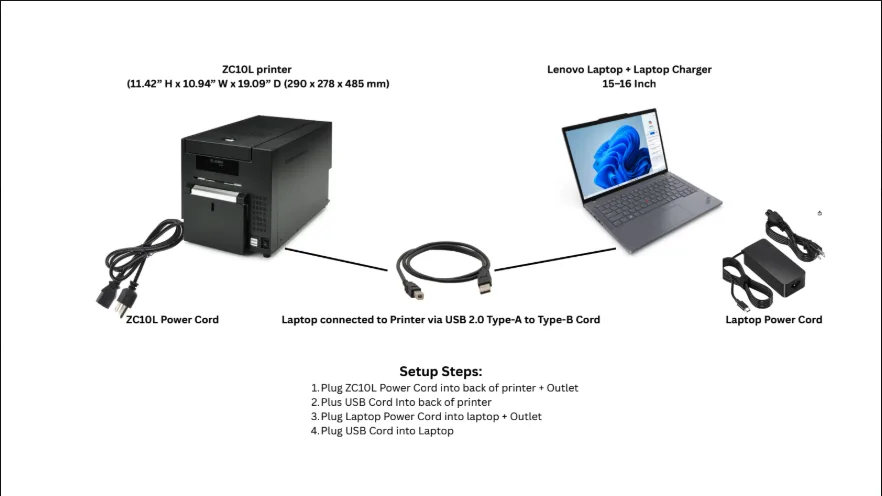
Everything below ships in one Pelican case when CrowdPass runs the print station. Check it against the list before you leave for the venue.
You also need a CrowdPass account with the event built, a badge design saved in the CrowdPass badge designer and the attendee list imported or synced from your registration source.
Zebra ZC10L setup, step by step
Allow 20 minutes from opening the case to a clean test badge. Do it the day before doors if the venue lets you in early.
Step 1: Unpack the hardware
Open the Pelican case and remove the ZC10L printer, the laptop, both power cords and the USB cable. Set the printer on a flat, stable surface with clear space in front of the drawer and behind the power inlet.
Step 2: Power on both devices
Connect the ZC10L power cord to the back of the printer and plug it into an outlet. Plug the laptop adapter into the laptop and an outlet, then power on the laptop. Let the printer finish its startup cycle before you connect it.
Step 3: Connect the USB cable
Run the USB 2.0 Type A to Type B cable from the printer to a free USB port on the laptop. Use a port on the laptop itself, not a hub, so the driver sees the printer every time.
Step 4: Verify the connection
On the laptop open Settings, then Printers and Scanners, and confirm that the Zebra ZC10L appears and shows as ready. If it is missing, jump to the troubleshooting section below.
Step 5: Configure printer preferences
Open the ZC10L printing preferences and match the settings to your badge.
Step 6: Sign in to CrowdPass
Open a browser, go to CrowdPass and sign in to your event account. Open the event and confirm the badge design is the one you want to print.
Step 7: Load the badge stock
Pull out the printer drawer and load the badges with the holes to the left, the tabs at the bottom and the front of the badge facing you. Push the drawer back in until it clicks.
Step 8: Run a test print
From CrowdPass print a full badge for a test attendee. Check the color, the edge to edge bleed, the alignment of the name and photo and the cut position. Adjust the preferences and print again until the badge is right. Do this before the first real attendee reaches the table.
Printing badges onsite with CrowdPass
Once the test badge is right, the ZC10L runs from CrowdPass for the rest of the event. Staff never touch the driver again.
Print at check-in
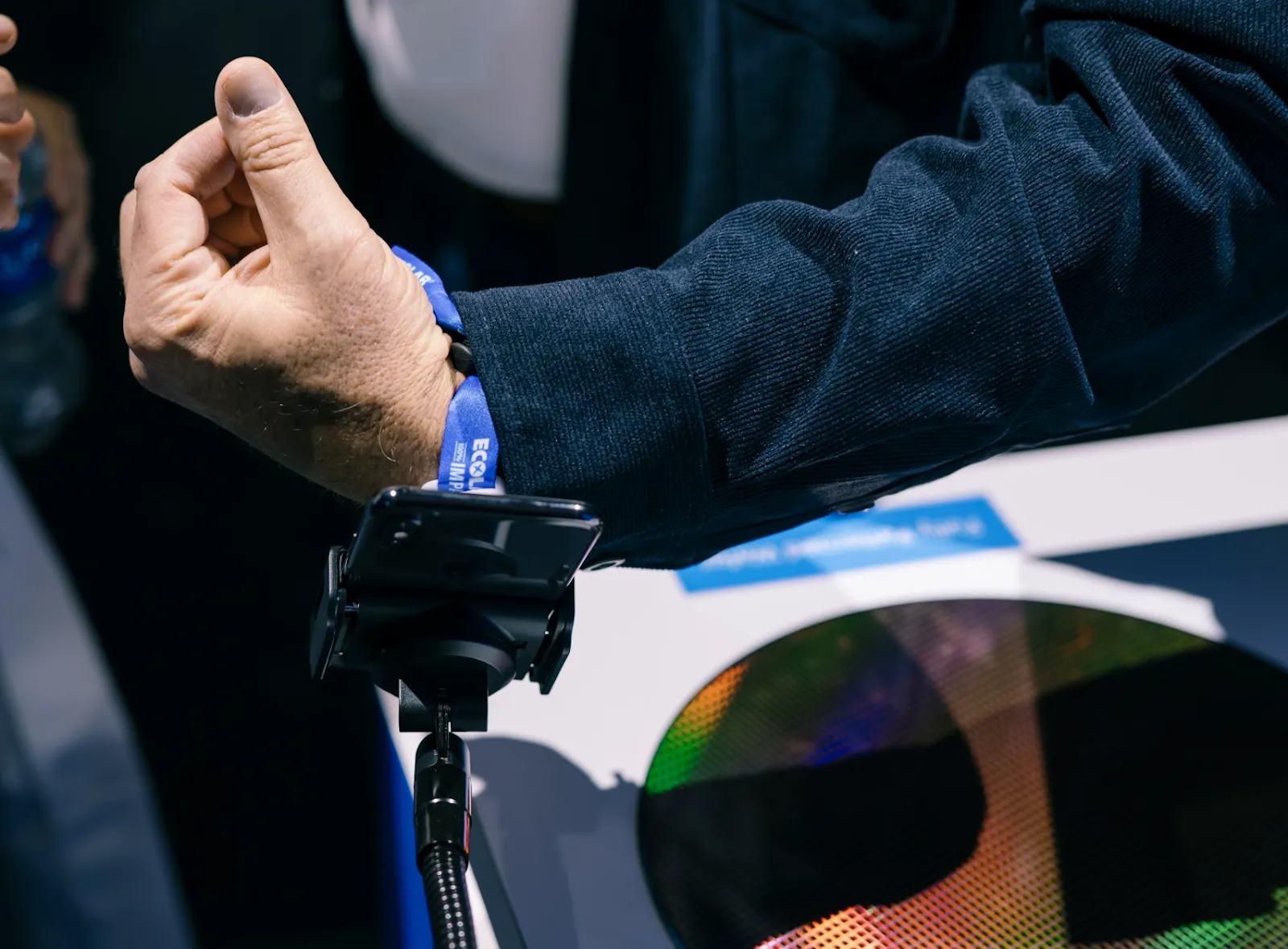
Search the attendee by name, email or confirmation code, scan their QR code, or tap their NFC wristband. CrowdPass marks them checked in and sends the badge to the ZC10L in the same step. Walk-up registrations are added on the spot and print the same way.
One badge design, every credential
The CrowdPass badge designer handles attendee, speaker, exhibitor, press, VIP and staff badges from one event. Ticket type, access level, company name and photo fill in automatically, so a staff badge and an attendee badge come off the same printer with no reconfiguration.

Access control on the badge
Each badge carries the attendee's QR code and can be paired to an NFC wristband or smart NFC badge. CrowdPass readers and the CrowdPass mobile app check that credential at every door, session room, lounge or backstage area and only admit the ticket types you allow.

Attendee and staff management in one place
Check-in counts, no shows, reprints and area entries update live in the CrowdPass dashboard. Staff see who is inside, which badges were reprinted and which areas are near capacity, from any phone.
Works for every event type
The same setup runs conferences, trade shows, festivals, galas, sporting events, corporate meetings and multi day summits. Large format PVC badges hold up for the whole event and read cleanly on camera, which matters for sponsored badge fronts and photo moments.
Troubleshooting the ZC10L onsite
Most onsite problems come down to the cable, the drawer or the cutter setting. Work through these in order.

Tips that save time at the table
Zebra ZC10L FAQ
What size badge does the Zebra ZC10L print?
The ZC10L prints large format badges up to 3.5 x 5.5 inches on PVC card stock, full color and edge to edge, with no white border.
Is the ZC10L single sided or double sided?
The ZC10L prints one side per pass. For a double sided badge, print the front with the cutter disabled, flip the stock, then print the back with the cutter enabled.
How does the ZC10L connect to a laptop?
Over a USB 2.0 Type A to Type B cable with the Zebra ZC10L Windows driver installed. CrowdPass sends each badge to the printer through the laptop's browser.
Can I print badges on demand at check-in?
Yes. With CrowdPass, checking an attendee in and printing their badge is one step. Walk-up registrations print the same way.
Can the printed badge be used for access control?
Yes. Every CrowdPass badge carries a QR code and can be paired to an NFC wristband or card. CrowdPass readers and the mobile app check that credential at any door or zone.
Which events use ZC10L badge printing?
Conferences, trade shows, festivals, galas, sporting events, corporate meetings and multi day summits. Any event that wants a premium, durable credential printed at check-in.
Do I need to buy a ZC10L to use CrowdPass?
No. CrowdPass operates ZC10L print stations onsite as part of its event services, with the printer, laptop, badge stock and staff included. See ZC10L badge printer rentals, or run your own ZC10L with the setup in this guide. Ready to print at your next event? Talk to CrowdPass.